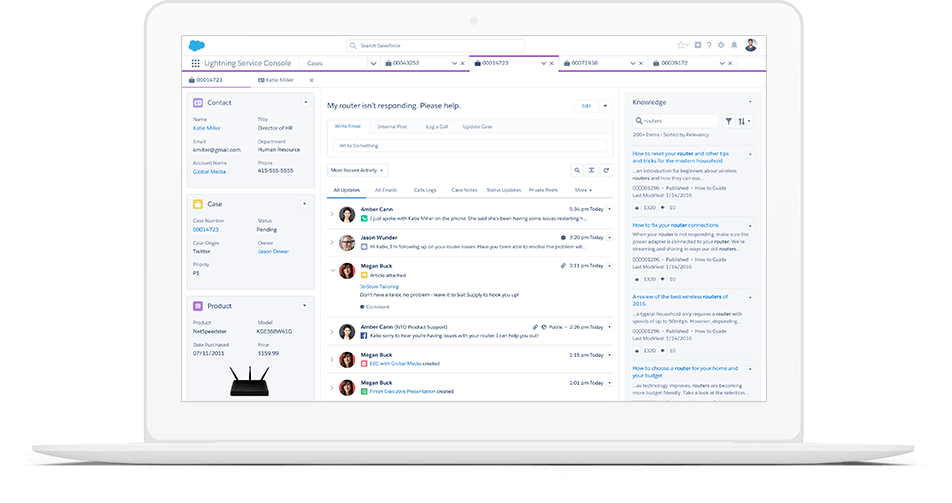
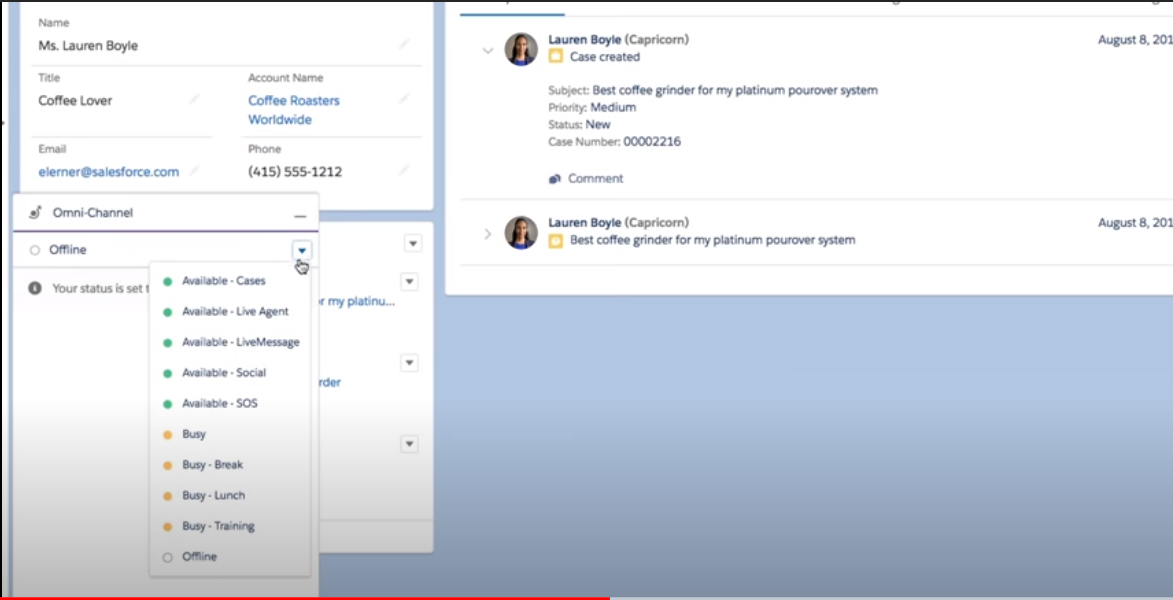
Case Management in Service Cloud allows users to record, track, and solve customer issues related to sales orders or services.
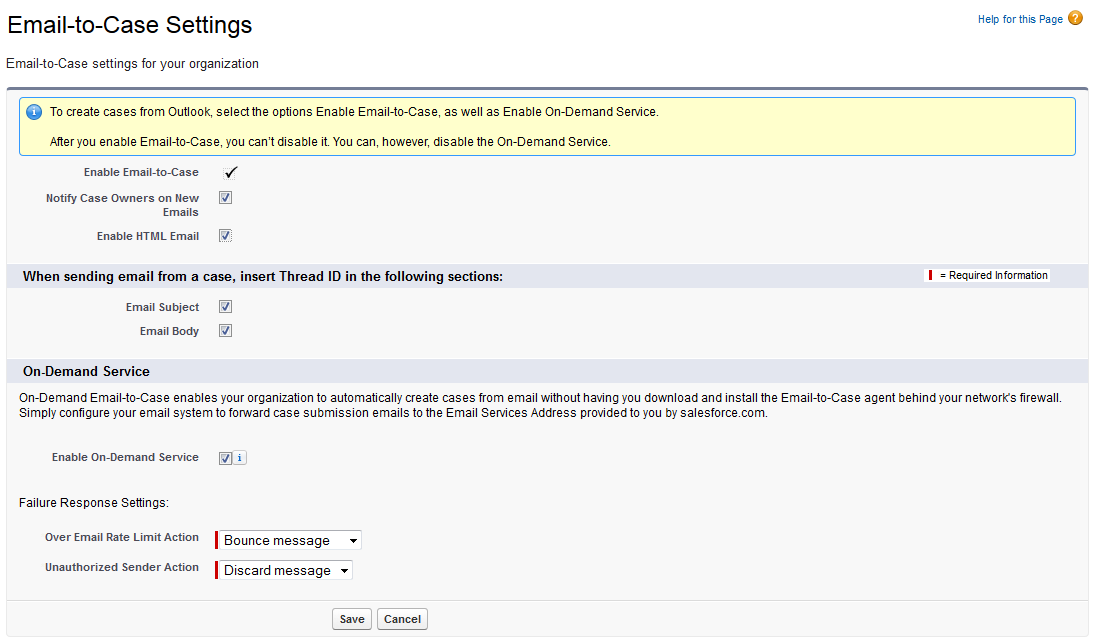
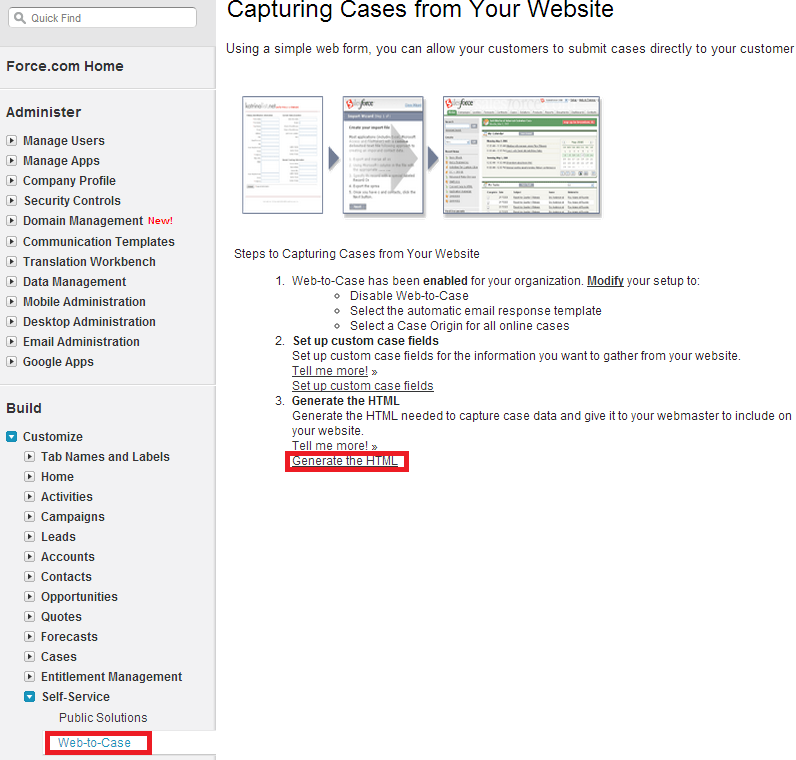
You can create cases either from an email (using email-to-case), from a web form (using web-to-case), or even from service users logged into Salesforce that enter service requests manually.
Cases can be managed in queues and assignments. Service heads may also define the escalation rules for the cases. The functionality helps to deliver the best experience to both the service agents and customers.
The service team can access data in a centralized location for their case handling, connected directly to client accounts, via related lists and lookup fields by going to the Case tab.
Any company can choose how they want their cases to be created. They can create cases internally, on an ad hoc basis, by agents (like in call centers) when customers call in.
Following are options to capture and create cases in Salesforce.
1. Email-to-Case
2. Web-to-Case
3. Call Center
4. Manual
5. Automated
6. Answer site – Escalate unanswered questions to the case
7. Turn Emails and Social Media Posts into Cases
8. Convert Customer Interactions (Phone, Chat, Messaging)
Organizations can accept emails by having their customers send their support requests to an email address of your company dedicated to service by using the Email-To-Case feature.
You can also receive cases from your organization’s website via Web-to-Case by using a simple form on your website.
Additionally, organizations can automate much of their case handling processes by utilizing built-in functionalities like escalation rules, assignment rules, auto-response emails, support settings, and support processes (to name a few).
A service-level agreement (SLA) acts as a commitment between you and your customer. Service Cloud allows you to manage service-level agreements with entitlements, service contracts, assets, and milestones.
Managing Entitlement allows you to define, enforce, and track customer service at different levels as part of your support management process, so you can offer customers the support you’ve promised.
Managing assets allows you to keep tabs on the products that your customers buy. Assets represent installed or purchased products. These assets can be linked to entitlements, maintenance plans, and work orders, allowing your support team to quickly assess the historical data related to the customer purchase.
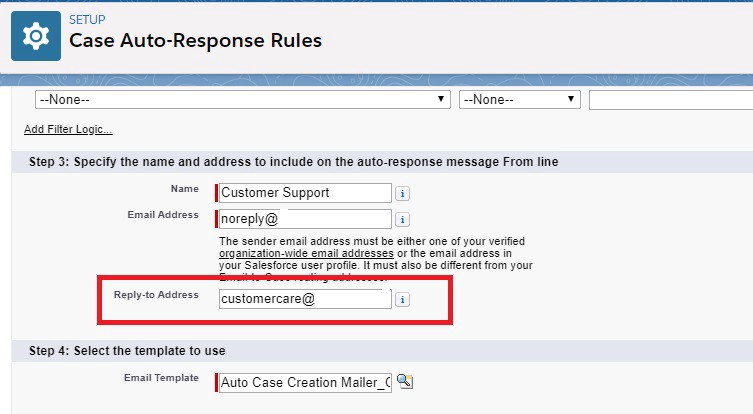
Case Auto-response rules automatically send an email response to the user who submitted a case from Web or Email, Self-Service Portal, or Customer Portal. We can create as many auto-response rules as needed but only one rule would be active at a particular time.
The auto-response rule entry specifies the following aspects:
The Solutions tab displays a search box that helps agents to locate solutions quickly by matching the respective keyword entered for searching. You can use standard and custom list views to sort and filter solutions by clicking Customise in image shown below. Solution Managers, administrators, and users with relevant permissions can create, review and categorize solutions.
These rules automatically assign case records to a particular user on the basis of different conditions mentioned. A case assignment rule consists of many rule entries that would help to identify the assignee of a particular case.
Rule entries would consist of conditions a case must meet in order to be assigned to a particular user.
You can create as many assignment rules as you need but only one can be active at a time.
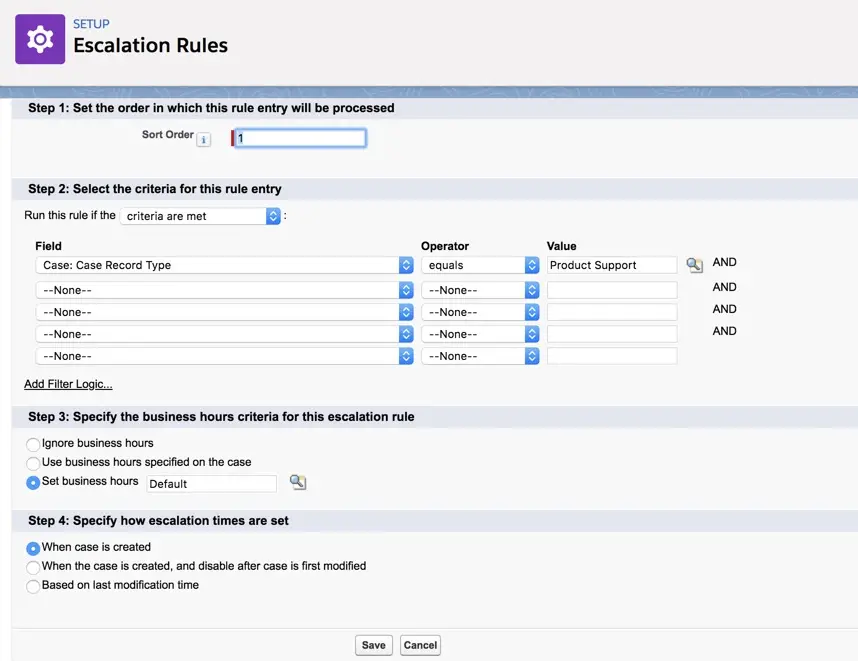
Case escalation rules help the support team to reassign and optionally notify individuals when a case is not closed within the time period it should have.
Salesforce Case Escalation rules allow the team to:
 Public Knowledge Base