
services  .  Let’s take the Backup of Data and plan for Next Year

Let’s take the Backup of Data and plan for Next Year

Pro Salesforce Header

Let's take the Backup of Data and plan for Next Year

Nothing could be more critical for a company than its data, which makes it crucial to keep it secure at all times. With New Year around the corner, you might have new plans for your business. But before you make any big moves, start backing up your data correctly.
We all know that the world of Salesforce CRM changes fast. Thousands of new records are being added or altered by Salesforce users. This makes it imperative to maintain your backup, so you don’t lose any essential information.
Although preventing the loss of vital data is a good enough reason, there are other reasons to find a Salesforce backup solution. There are even chances of losing data due to any of the following reasons:
Mass Data Import: Tools like Data Loader allow admins to modify records within a few seconds. If users end up making any mistake, they can wipe off records and field values of the CRM.
Rogue Automation: There are chances that a user deploys a buggy Process Builder or Apex Trigger. It ends up in overwriting data could end up in data corruption or data loss.
User Error: There is also another possibility of making general mistakes by any user that could lead to data loss.
Let’s move ahead and understand the different ways a user can safely back up the data for better planning and decision-making.

Backup Data Using Data Export

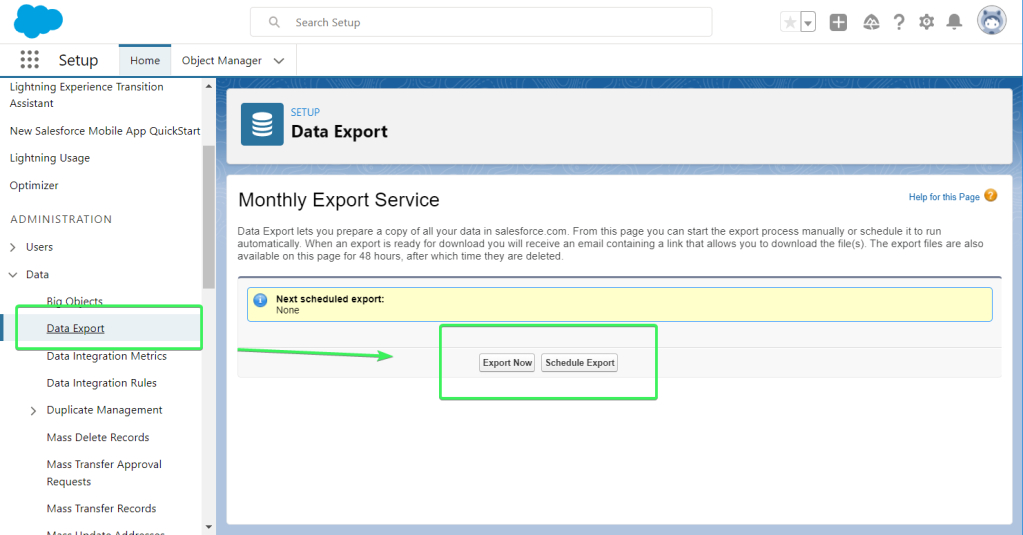
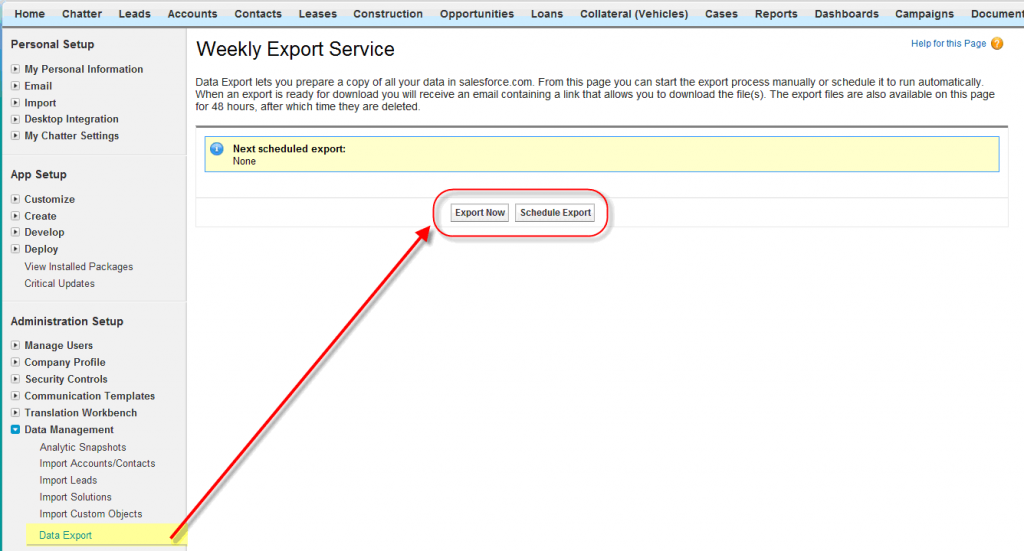
One of the most common ways of backing up Salesforce data is by using Salesforce Data Export. It is a function by Salesforce that enables users to export data for the org to create a backup safely.
Data Export allows you to export data manually or automatically by scheduling an export. Depending on your Salesforce edition, you can back up your files monthly or weekly.
The monthly export using Data Export is available and free for all Salesforce editions, but it’s not available for Database.com. On the other hand, the feature of weekly export is available only for Performance, Enterprise, and Unlimited Salesforce Editions.
The Data Export Service allows you to export your organization’s data into a set of 150MB CSV files. These files are included in .zip files of around 512MB. Multiple .zip files are created by data export.
You can use Data Export for three main reasons:
To back up your data
To import data to another system
To conduct accurate reporting

Backup Data Using S-Drive

Another way to back up your data is by using the S-Drive application.
It works by successfully combining the capabilities of Salesforce with the secure file storage features of Amazon. It allows users unlimited space for files, which your team can upload, share, or download.
With S-Drive, you can have a user-friendly experience while ensuring that your sensitive files on Salesforce are secure and easily accessible when required.
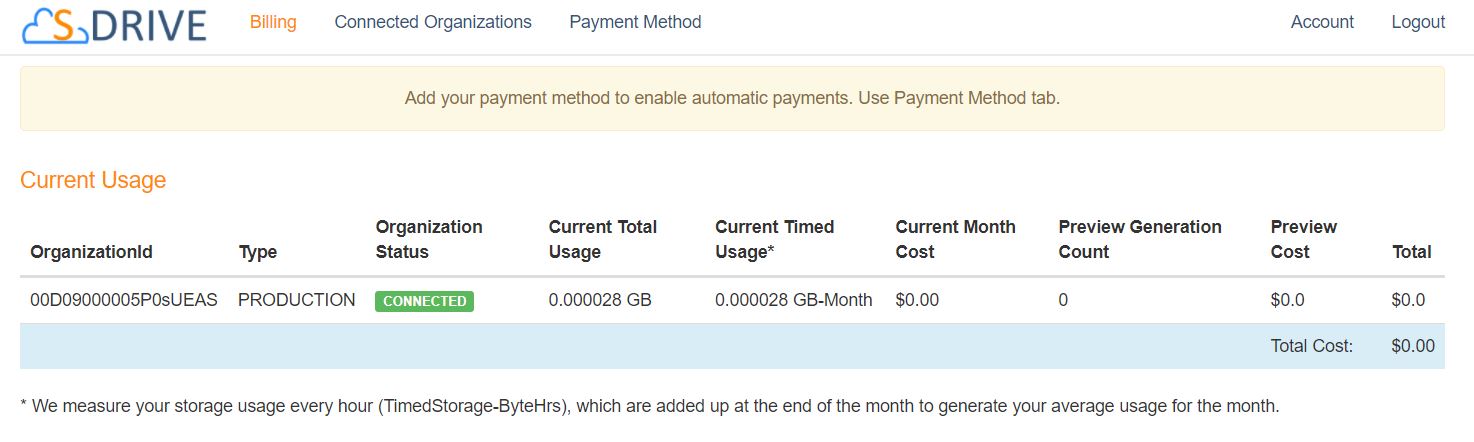
You can start by installing the S-Drive app and connecting your Salesforce org, for which you can back up data. Also, you’ll be able to track usage metrics and billing details so you can always have an idea about the cost.
After successfully installing the managed package within Salesforce, you’ll also be able to access the S-Drive Lightning App.
You can manage or access any functionalities from here. You can also include Lightning Web Components on the record pages if you seek easier access.

Whichever way of backing up Salesforce data you choose, you need an expert hand, as you cannot afford to lose any information due to any error. Having Salesforce consulting services will always help you successfully create your data backup.

Winding Up

The importance of regularly backing up your data can never be underrated.
From your customer details to sensitive company information, there can be a lot that you want to keep within your firm.
We’ve discussed ways to back up your data in Salesforce, but we will recommend you talk to a Salesforce expert to plan your backup strategy right.

Talk to our team of Salesforce consultants and prepare your backup strategy while ensuring no data gets lost during the process.

Have a Message For Us?

Please fillup the form and send your message.

Loading......

Captcha

Refresh

Click on submit to be contacted for a demo of our products or Salesforce Services.

Don't make your team remember thousands of Passwords, implement SSO instead (Single Sign-On)

On a typical day, you’d surely be using a myriad of software, from email to other business applications that simplify your daily tasks. While it helps you with your work, remembering all of the usernames and passwords to these multiple accounts can be challenging.
Enable Single Sign-on systems (SSO) on your Salesforce can alleviate the stress and struggle of recalling a multitude of credentials for all your applications.
SSO helps businesses improve the user experience by simplifying the login process to apps. Whether you’re navigating through your business application or any other third-party apps, SSO streamlines the entire process, helping you access any of these applications easily.

What is Salesforce Single Sign On?

Salesforce Single Sign-on or Salesforce SSO allows all users to access all authorized network resources using a single username and password. This eliminates the need to remember and enter different usernames and passwords each time you try to log in to any resource in the network.
Consider a case, in an organization, there are multiple applications, systems, and resources to be accessed by every user. To access those resources, the user has to log in to that application using the authorized username and password. But if he needs to access more resources, it can be really difficult to remember passwords for each of those resources. SSO helps to eliminate this kind of issue.
There are numerous advantages that you can uncover with Salesforce SSO.
You have to spend less time managing and recalling passwords when logging in.
Not having to log in manually to Salesforce saves time for employees. All those seconds spent logging into multiple applications can really add up for employees.
SSO enables more people to use Salesforce. You can easily send out links to Salesforce reports and records, which recipients can open just with a single click.
Access to sensitive information can be managed just from one place.

How to Enable Salesforce Single Sign-On

Now let’s start with the steps to enable Single Sign-On for your Salesforce.
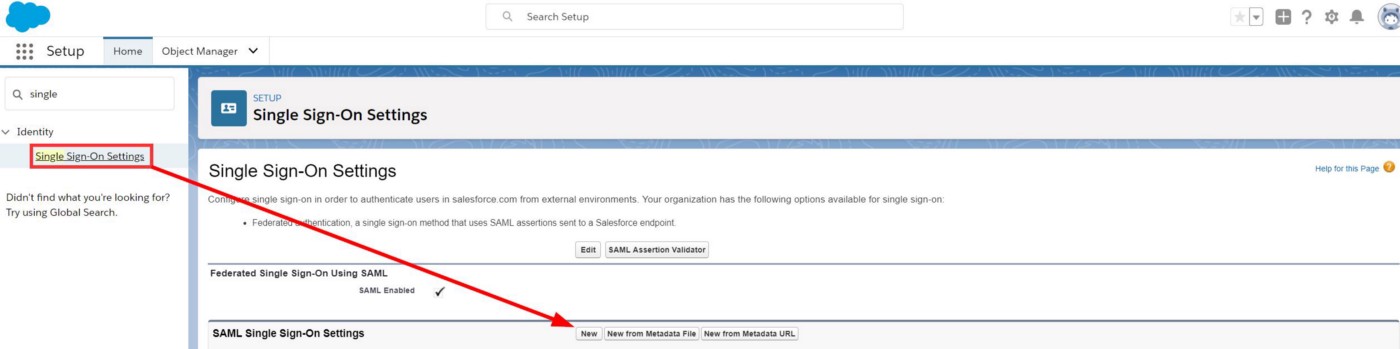
Step 1: Start with creating “New” in SAML Single Sign-On Settings.
Go to Setup and enter “Single Sign-on Settings” and click on the mentioned link.
You have to select one of the following options:
– New
– New from Metadata URL
– New from Metadata File
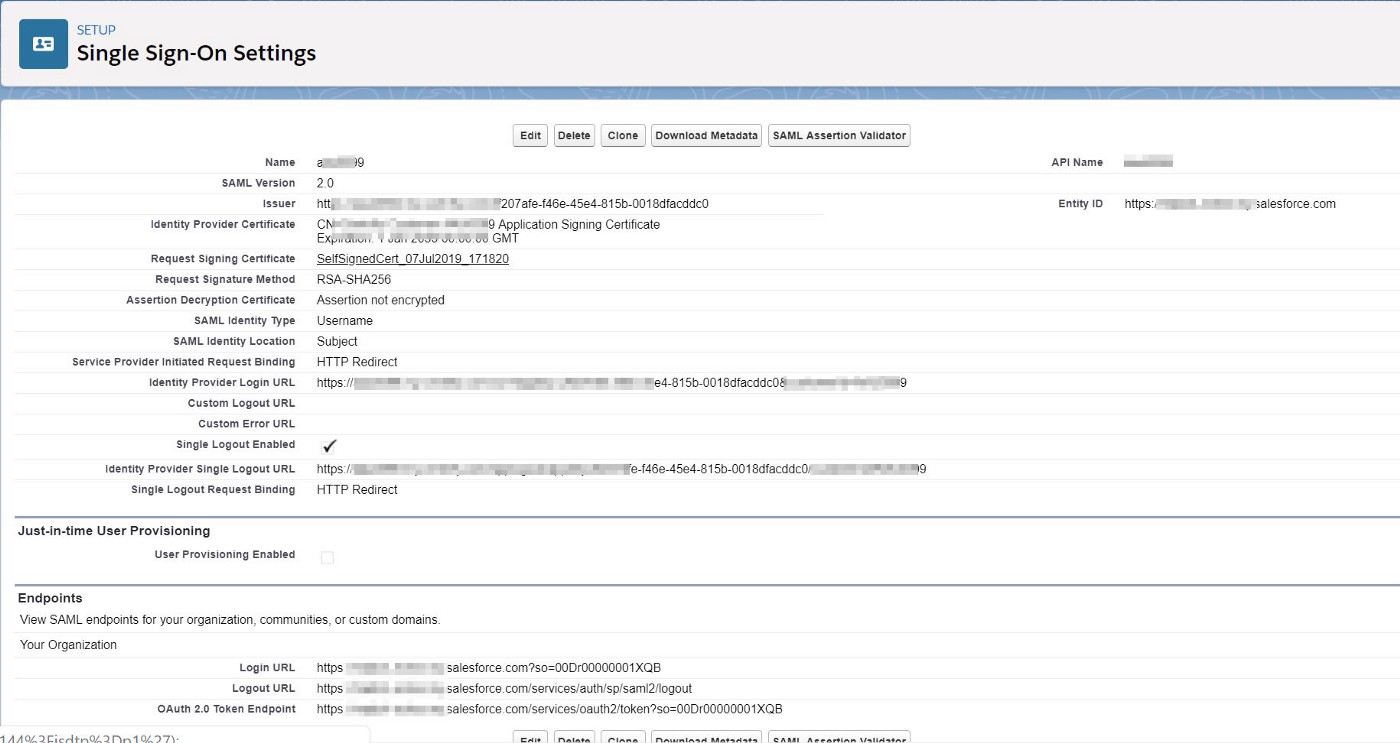
Step 2: After clicking on New, you have to fill in the required fields.
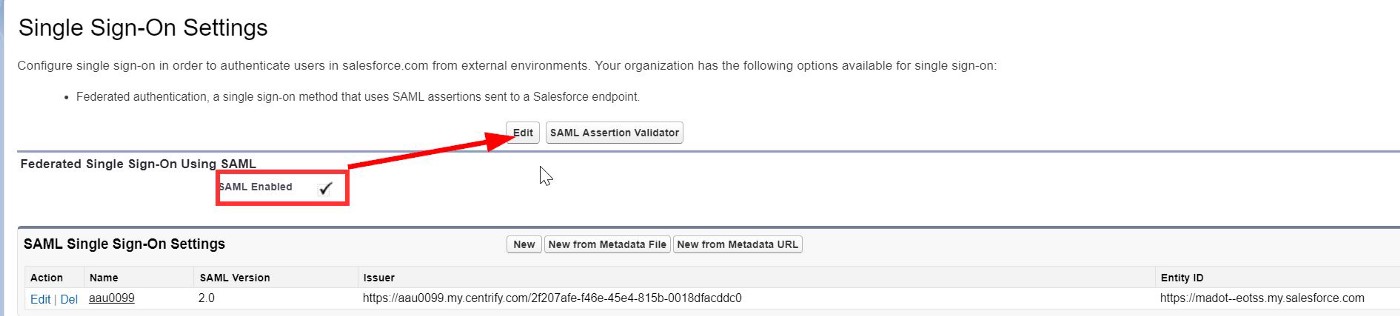
Step 3: Next, you have to enable SAML.
This is an important checkbox that you should not miss out on.
Without enabling SAML, you won’t be able to select SSO as an option for your users.
Step 4: Now, you’ll have to allow users to log in using SSO
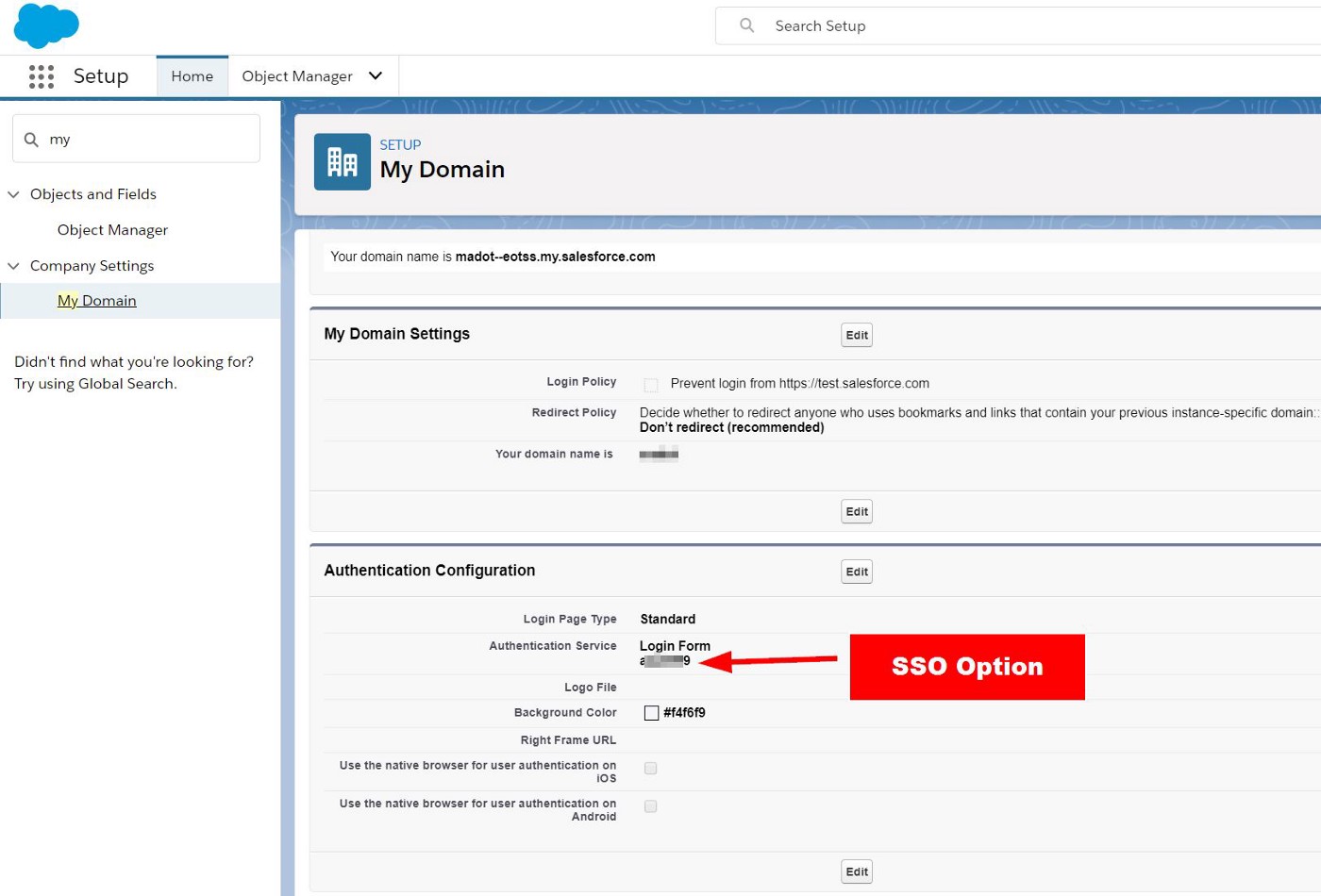
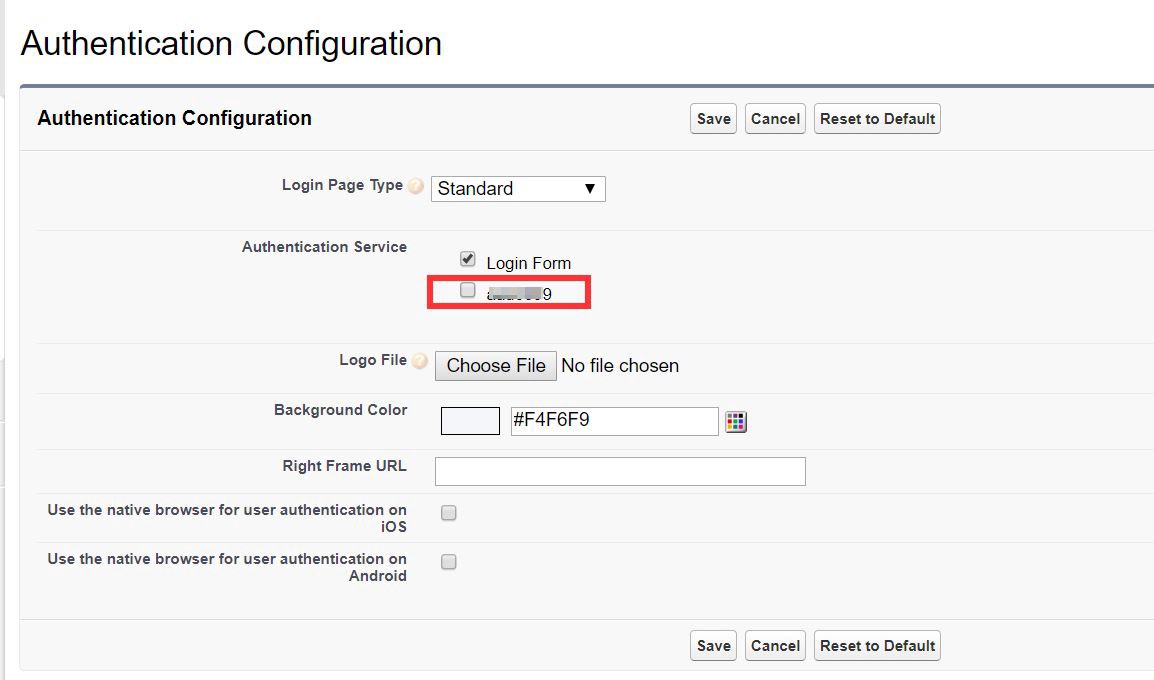
Select My Domain from Setup. Select Edit > Authentication Configuration.
After clicking Edit, select the newly created SSO option for users to login in.
Once you’re done with it and try to login into Salesforce, you’ll find an additional option to use the mentioned SSO to log in
You can directly enable Salesforce Single Sign-On using this PDF on
How to enable Salesforce Single Sign-On. → 

Wrapping Up

Salesforce SSO helps to streamline the login process, so you don’t have to enter your credentials again after putting them in once. If you put together the amount of time spent re-entering complex passwords, this is a real time saver!
We’ve attached a downloadable PDF so you can enable SSO easily. But if you need any assistance or learn to know more, reach out to our certified Salesforce consultants.
Have a Message For Us?

Please fillup the form and send your message.

Loading......

Captcha

Refresh

Click on submit to be contacted for a demo of our products or Salesforce Services.

Make Salesforce more secure with Multi Factor Authentication

Security is always a concern whenever you want to handle something online and Salesforce is no different. When it comes to Salesforce, the first thing you need to be concerned about is securing your login.

Just like your bank account, your Salesforce instance has a lot of sensitive information that you would want to be secure from unauthorized access. To protect sensitive data, Salesforce provides the ease to set up Multi-Factor Authentication or MFA, for all users of a Salesforce org.

Screenshot-2022-02-03-at-6.00.37-PM.png
You should also note that from February 1, 2022, Salesforce mandates the use of MFA to access Salesforce products. So all in-house users at your business trying to log in to Salesforce products through the user interface must use MFA to secure login attempts
Here’s a list of products built on Force .com that use MFA:
    Sales Cloud
    Service Cloud
    Analytics Cloud
    B2B Commerce
    Experience Cloud
    Industries Products
    Marketing Cloud—Audience Studio (formerly DMP)
    Marketing Cloud
    Pardot
    Salesforce Essentials
     B2C Commerce Cloud
     Heroku
     MuleSoft Anypoint
     Platform Marketing Cloud—Datorama
     Marketing Cloud—Email Studio
     Mobile Studio and Journey Builder
     Marketing Cloud—Social
     Quip Products
     Tableau Online

What is Multi-Factor Authentication (MFA)?

MFA is an authentication method that needs two or more pieces of evidence to allow a user to log in to Salesforce. Here’s how Salesforce protected systems earlier:
  Salesforce had been using 2FA with Emails & SMS for a long time.
  2 Factor Authentication comes with the risk of getting access to emails, 2FA devices, interception of SMS or Phone Call Networks.
MFA is a feature that adds an extra layer of protection against unauthorized and suspicious logins:
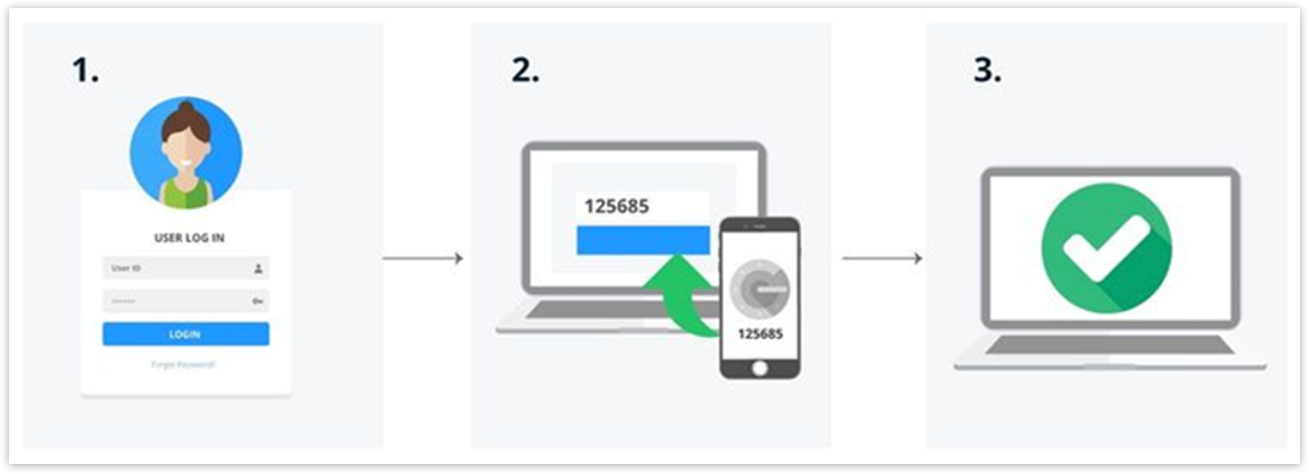
It combines your credentials (username and password) with something you have (keycard or a mobile device), as depicted in the picture.
Enabling the Multi-Factor Authentication means that your Salesforce login would need an added layer while logging in, apart from the username and password.

What is Multi-Factor Authentication (MFA)?

MFA is an authentication method that needs two or more pieces of evidence to allow a user to log in to Salesforce. Here’s how Salesforce protected systems earlier:
Salesforce had been using 2FA with Emails & SMS for a long time.
2 Factor Authentication comes with the risk of getting access to emails, 2FA devices, interception of SMS or Phone Call Networks.
MFA is a feature that adds an extra layer of protection against unauthorized and suspicious logins:
It combines your credentials (username and password) with something you have (keycard or a mobile device), as depicted in the picture.
Enabling the Multi-Factor Authentication means that your Salesforce login would need an added layer while logging in, apart from the username and password. .
Screenshot-2022-02-03-at-6.35.34-PM.png

How is Salesforce Multi-Factor Authentication Helpful?

In a world where credentials are stolen by data breach attempts regularly, Salesforce Multi-Factor Authentication helps you to tackle cyber attacks, keeping your org secure with an added layer of security with an authenticated login.
MFA has become an essential part of the Salesforce security strategy to safeguard organizations using Salesforce. Salesforce username and password do not provide complete protection against critical phishing attacks.
That’s where MFA will act as a barrier between such cyber-attacks and your account.

There are Multiple Ways of Authorizing Your Account

There are three types of verification methods that you can use to implement Multi-Factor Authentication for your Salesforce account:
    Salesforce Authenticator Mobile App
    Third-Party Authentication Apps
    Security Keys

1. Salesforce Authenticator Mobile App

Using Salesforce Authenticator App for authentication will help you get notifications whenever anyone tries to log in. You’ll also be notified of the location from where account access is being attempted. You can simply approve or deny the login attempt just with a tap.
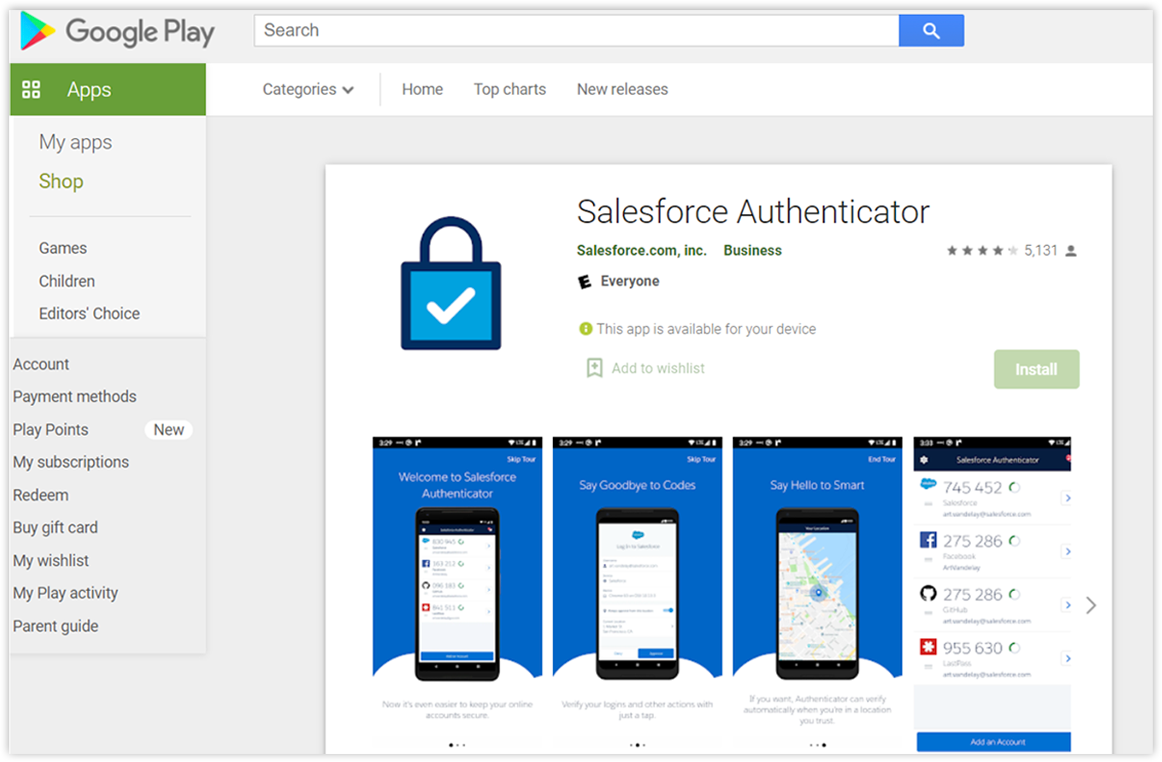
The Authenticator app is a mobile application so you can simply download it from the Apple App Store or the Android Play Store.

2. Third-Party Authentication Apps

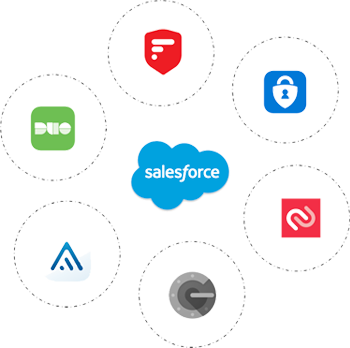
This method of verification allows users to verify the identity of the user through a unique temporary code called ‘Time-Based-One-Time Password’ or TOTP. There are different apps that you can choose for this like the Microsoft Authenticator or Google Authenticator.
    Microsoft Authenticator     Google Authenticator     Authy      Duo
3. Security Keys

Another way of authentication is using a security key, which is a small, physical device like a keycard or USB. You can use this method when you can’t access a mobile device to receive any security codes.
Also, please find our Salesforce MFA Webinar Video here

Wrapping Up

Setting up system permissions and authentications is one of the most impactful things you can do to safeguard the business. Many of our clients are already using this, so get your teams on board today to implement the same.
With an uptick in cyberattacks, it has become more important than ever to take charge of the security of our organization’s accounts. Salesforce MFA is one of the easiest and most reliable methods to combat stolen credentials and unauthorized access.
While the PDF provided has the step-by-step process, you can always reach out to us and ask us for a 1-on-1 if you get stuck anywhere.
Have a Message For Us?

Please fillup the form and send your message.

Loading......

Captcha

Refresh

Click on submit to be contacted for a demo of our products or Salesforce Services.